
Bare Basics Of Working With Github Repository
From initializing to pushing to Github for absolute beginners

This short tutorial may be easy-peasy for computer veterans, but it took me quite a while to figure out. Hopefully this will make life a little easier for those new to Github.
Create the repository on Github
Go to New repository on Github. Enter an available repository name and choose a Private for visibility. Click create Repository. Take note of your Github’s repository address as underlined in thick orange line below. We have to modify it later.
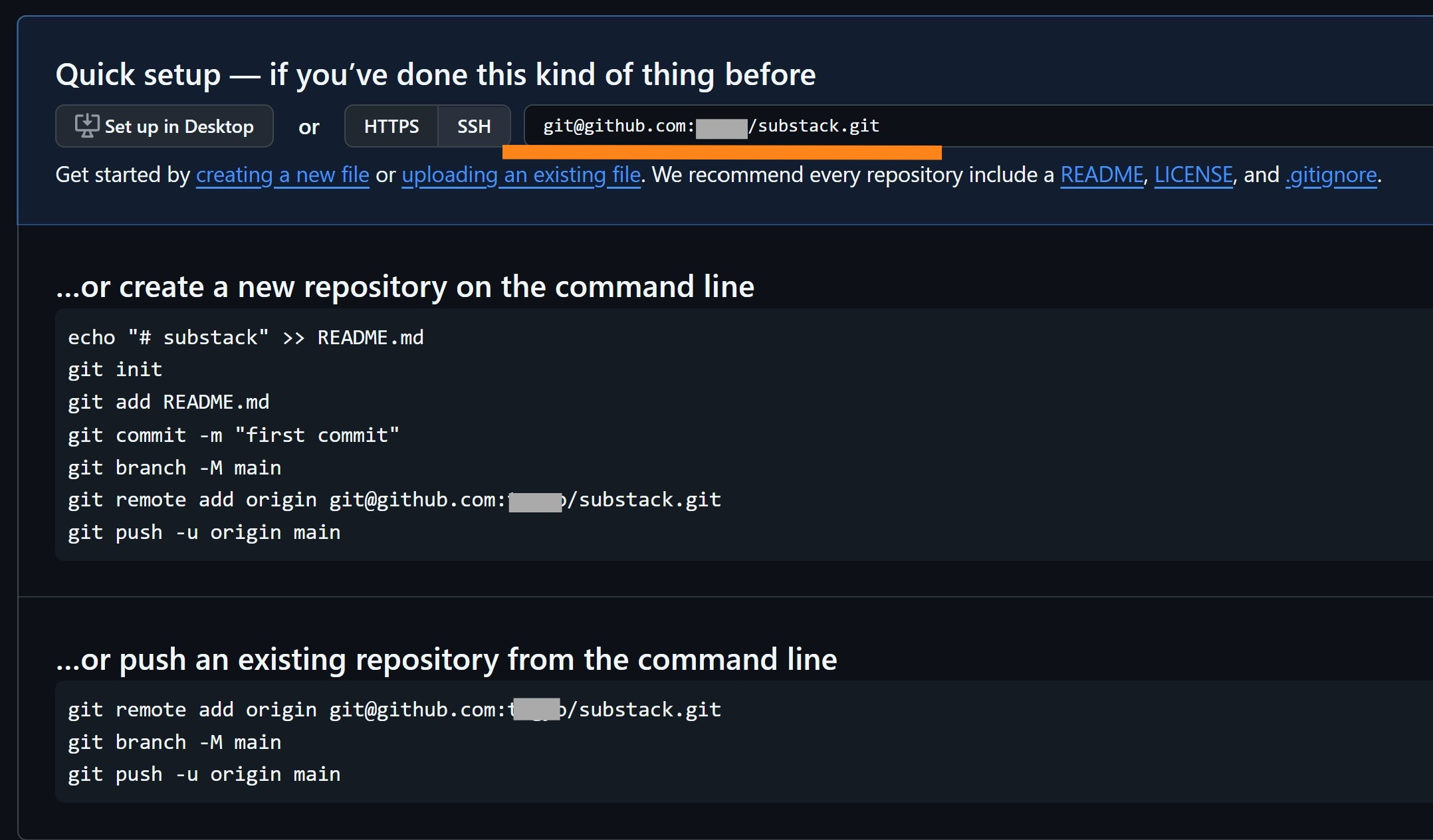
Open the command prompt or PowerShell or Linux shell. Create a new directory and enter it. These instructions should work but we can encounter an error when git push. We need to authenticate it somehow and Github has phased out passwords. So we need to get a PAT (Personal Access Token) that works like a password.
Get your PAT
To get your PAT, click your Profile icon → Settings → Developer Settings (Left column last item) → Personal access tokens → Tokens (classic). Then click generate new token. Enter a name and choose an expiration date and click Generate token at the bottom.
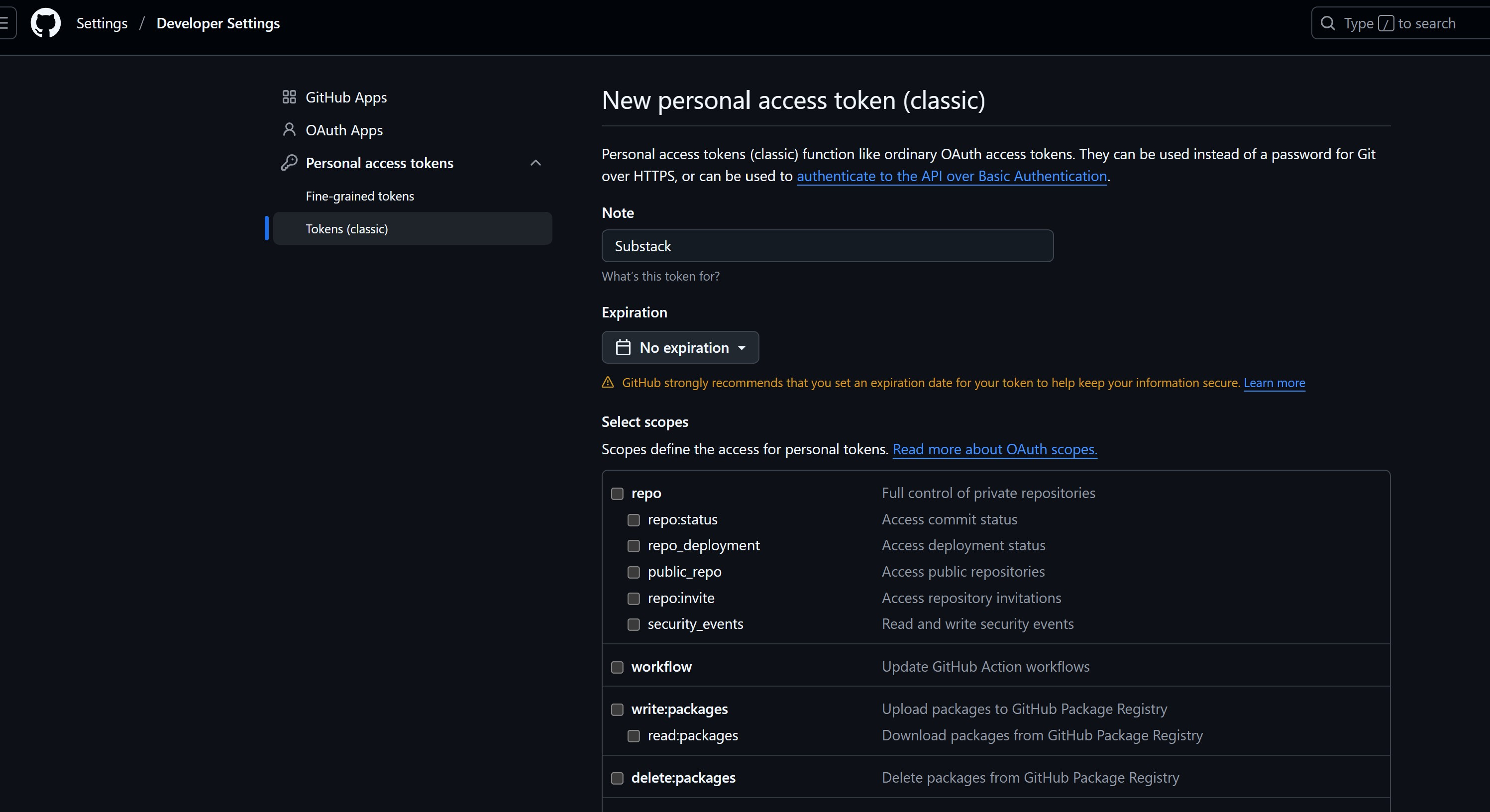
Copy the PAT that looks something like: ghp_KZoqYXIQKxxxxxxxxxxxxxxxxxxx. Save it somewhere for access.
Let’s start initializing to pushing
Back at the local directory we created with command line, enter the following. Be sure to replace the fields with your own configurations, in particular the git remote add origin line with your own PAT and Github repository name that we noted before.
echo “# substack” >> README.md
git init
git add README.md
git commit -m “first commit”
git branch -M main
git remote add origin https://ghp_KZoqYXIQKxxxxxxxxxxxxxxxxxxx@github.com/YYYYY/substack.git
git push -u origin main
Note: If git remote add origin does not work, use git remote set-url origin may work.
From here onwards once you made changes, all you need to do is to issue these 3 short commands from the same directory you initialized above and it will push to that repository:
git add .
git commit -m ‘a message’
git push
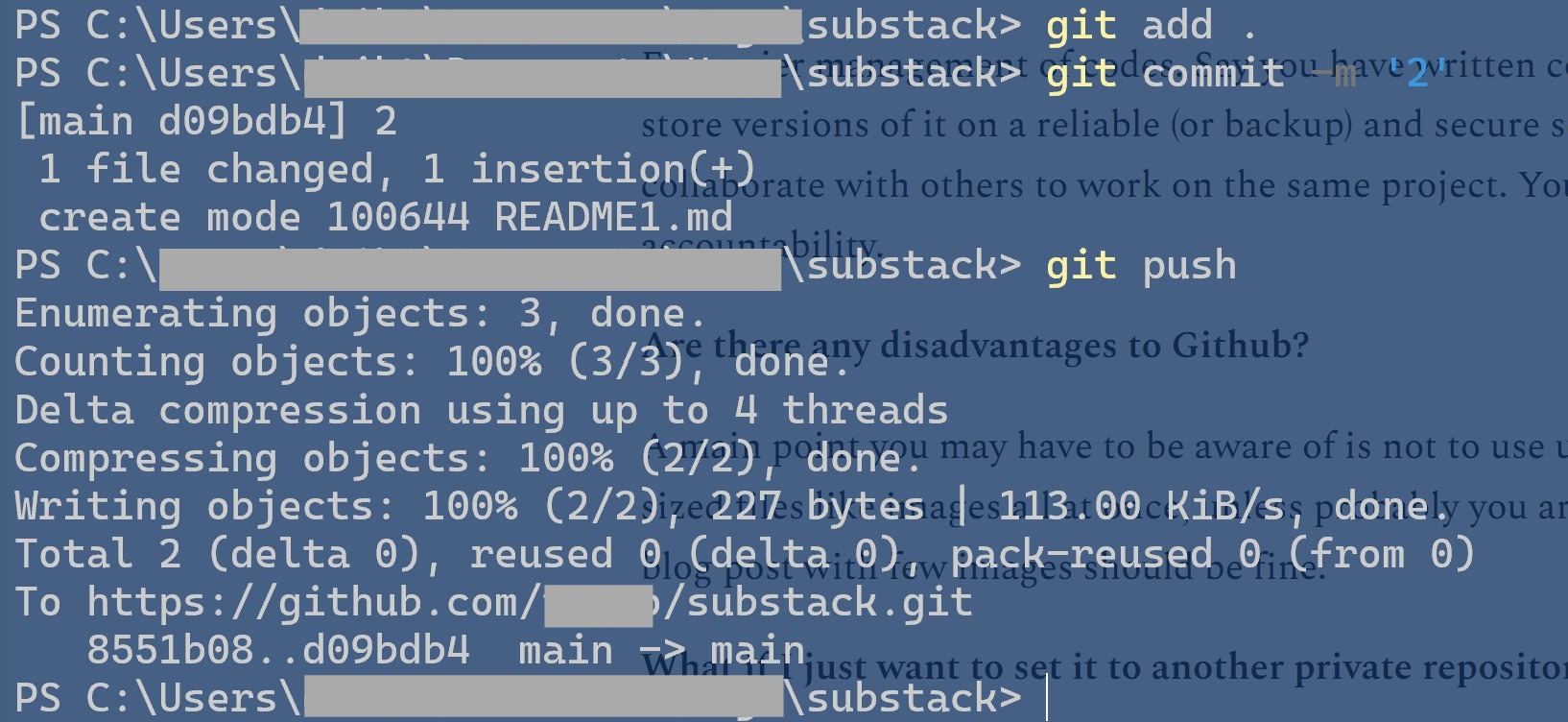
If you got this far, congratulations on your successful public/private Github repository push 👌😊
At this point, you should be good working alone on solo projects that just require direct changes to the main repository. This is possibly all you need as an individual developer working on small projects.
Git pull and merging
If you come to a point where you need to work with others, or make changes on the Github repository that you need that to update locally or need to make an extra feature of your project without affecting the main project before deciding to merge it with the main project whenever ready, then feel free to explore the Git pull and Git merge commands here.
More
Why do I need Git or Github?
For easier management of codes. Say you have written codes, you can just update or store versions of it on a reliable (or backup) and secure server elsewhere. You can even collaborate with others to work on the same project. You may also think of this as accountability.
Are there any disadvantages to Github?
A main point you may have to be aware of is not to use upload a large number of big sized files like images all at once, unless probably you are on a paid plan. A normal blog post with few images should be fine if you git push regularly.
What if I just want to set it to another private repository?
See if this command works: git remote set-url origin