
Basic Linux terminal commands and server administration
For beginners and the curious

Introduction
While Linux and its commands are a big topic itself, the number of basics commands are doable by average standard, perhaps only a dozen or two are frequently used.
I advocate a learn and use what you need approach when to it comes to Linux and administration. Do not by over plan or afflicted with ‘paralysis by over analysis’. In other words, search for what you need and learn enough to implement it quickly and effectively and move on.
Here are some basic Linux and server administration related commands:
This section relates to the basics commands.
/ Slash is a directory separator e.g. /home/user/file.txt. Slash also represent the root directory of the Linux system. . Refers to current directory or folder .. Refers to the parent directory ~ Refers to the home directory
Tab To complete directory and filenames
cd directory Enter into directory e.g. cd /www/var will enter into root’s www directory and then into var directory.
cd .. Go up the parent directory
cd Go to default home directory. cd ~ does the same thing.
cd - Go to previous directory. This is useful if you navigate between 2 very long different sub-directories.
mkdir directory Create a new directory
ls List the content of the current directory
ls directory List the content of that directory. A ’d’ at the beginning of each line indicates it is a directory.
rm filename Delete a file
rm -rf directory Forcefully delete a directory
man command-name Display system help page for that command
cat filename Display file content.
exit Quits and closes the terminal session window
whoami System may display the username before the prompt. If not, this command will reveal it.
passwd This will change the password for the current user.
This section enters into system management and administration.
su username Switch user
sudo some-linux-commands Sudo tells Linux to execute that command with administor right.
sudo apt install package-name Apt is a package manager that installs packages or programs for your system. Debian and derivatives like Ubuntu uses it.
sudo apt update; sudo apt upgrade; sudo apt autoremove These 3 commands executed one after another will update your Debian/Ubuntu family systems. This is important for Linux. Linux often has lots of updates and it fixes some critical bugs and issues that you may encounter.
sudo apt install tldr Tldr is a user-friendly package that displays what is and the frequently used options for a command. Nice.
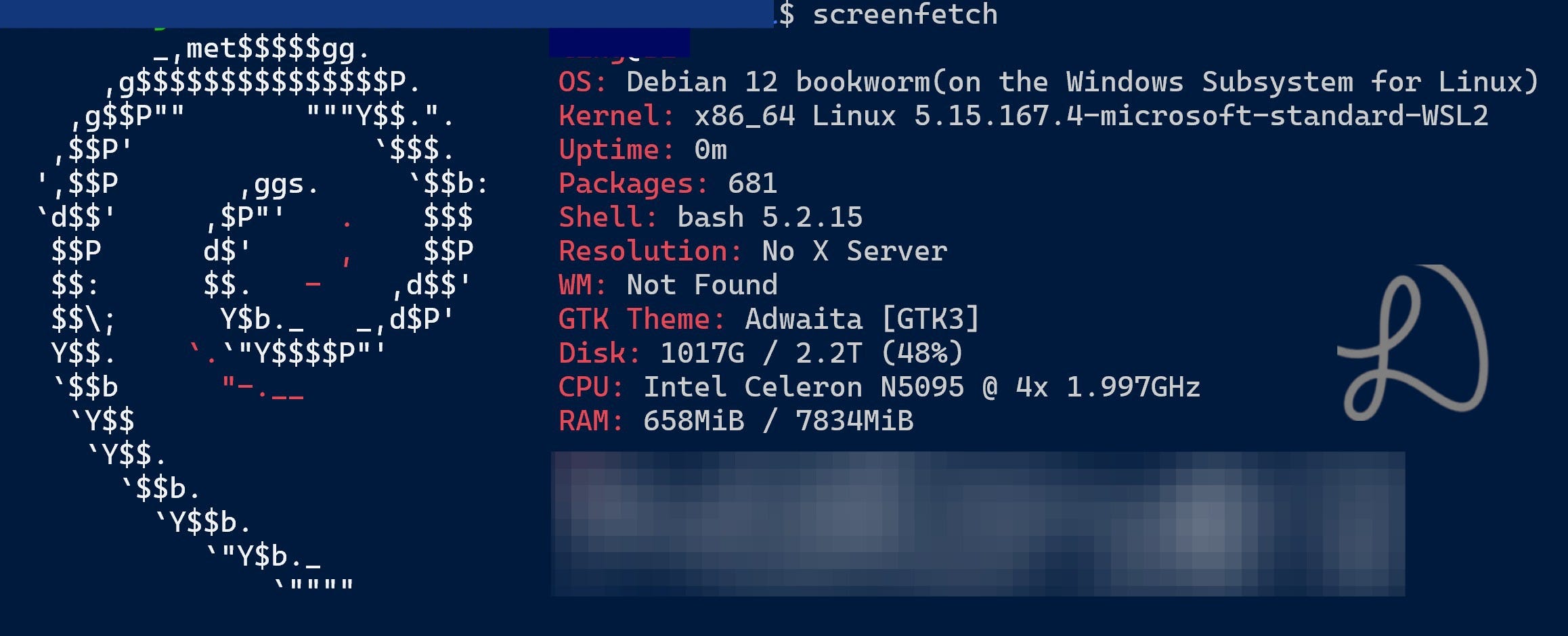
sudo apt install screenfetch Screenfetch After installed this can display a colored logo and system information at a glance.
tldr screenfetch This will state what screenfetch is and some common options.
pgrep command-name This is useful if we want to know if a command is running as a process currently or has terminated.
pkill command-name This will terminate all processes related to that command name
sudo apt install btop This will install a user-friendly tool to glance at system resources and process in one screen. Type btop and enter to launch after installation. An alternative basic built-in command is top.
nohup command & nohup stands for ’no hangup’, allowing a command to keep running even after logout or session termination. The & runs the command in the background. Note that this does not keep the command running after a system restart. The command/s to run may be some server framework command. You can do a pgrep command or btop (search within) to verify it is running.
reboot now Restart your Linux system
vi file vi or vim is a file editor. An alternative is nano. This is essential to configure the system and other files. If you want to install or upgrade vim, do a sudo apt install vim.
Now you know how to run some commands, what if you want to run a bunch of them upon login or system restart or check to show a status after login or restart some commands and so on? Read on…
This section helps to automates commands. This can be useful or even essential to server administration.
chmod +x filename This is important so the system will know this is an executable file. You can see an x on the left of the filename when you execute the command ls -l.
./launch.sh This itself will run or execute the file launch.sh that has been set as executable. Sh is not a required extension to run a file in Linux.
For example, launch.sh may include the following lines:
#! /bin/bash
echo -e “\033[0;32m Updating sample project\033[0m”
cd /var/www/sample-project/
git pull
Line 1 tells the system it is a bash script. Line 2 is output to the terminal display what it is doing next with a color code for easier reading. Line 3 goes into the web public folder of the project. Line 4 does a git pull to ensure the project is updated with that of your Github repository. I think you get the idea why these repeating commands should be in a file that gets to run every time you login or restart.
More
What if I want to schedule or repeat jobs or tasks to run at specific times?
Crontab is a built-in Linux program for this. For examples and information, a good start can be tldr crontab and start learning from there.
What if I want the system to run or execute a file every time it reboots?
In crontab, insert this line: @reboot /path/to/your/script.sh
How to run a file every time I login into a system?
Open to edit ~/.bash_profile or ~/.bashrc, add the following bash script file you already created elsewhere like so: ./launch.sh
How to add a shortcut (alias) in my bash shell? Say if you have a long path name that you do not want to keep typing over and over again, add the following into your ~/.bash_profile or ~/.bashrc like so: alias gg=’cd /var/www/sample-project/static/’
The next time you login, just type gg and it will go there.