
Vim For Beginners
Basics - Simple IDE Setup - Plugins Manager

Vim is powerful free open-source text editor. It is old like around the start of Unix.
Why Vim for modern users?
Vim is still a powerful editor in this age. There are at least 2 modern practical uses: Writing i.e. markdown. And programming. For example, we can configure and write a Hugo site articles with Vim. Like Hugo, Vim has a lightweight and speedy feel to it.
It is also rich in features that can be boosted with plugins. However, one can use Vim without any plugins too.
But one may wonder why spend days to save seconds? It is a choice. Vim can be very efficient in terms of system resource usage to get things done. And it can edit text or codes in powerful ways. For example, to highlight or cut text within double quotes, one simple type vi” or ci”. If you repeat these steps a lot, these kind of shortcuts can really help.
Learning The Basics Of Vim
Install Vim
Follow the download instructions from Vim official site. Some Linux comes with Vim installed by default. Debian-based Linux such Ubuntu may issue the following commands:
sudo apt update
sudo apt install vim
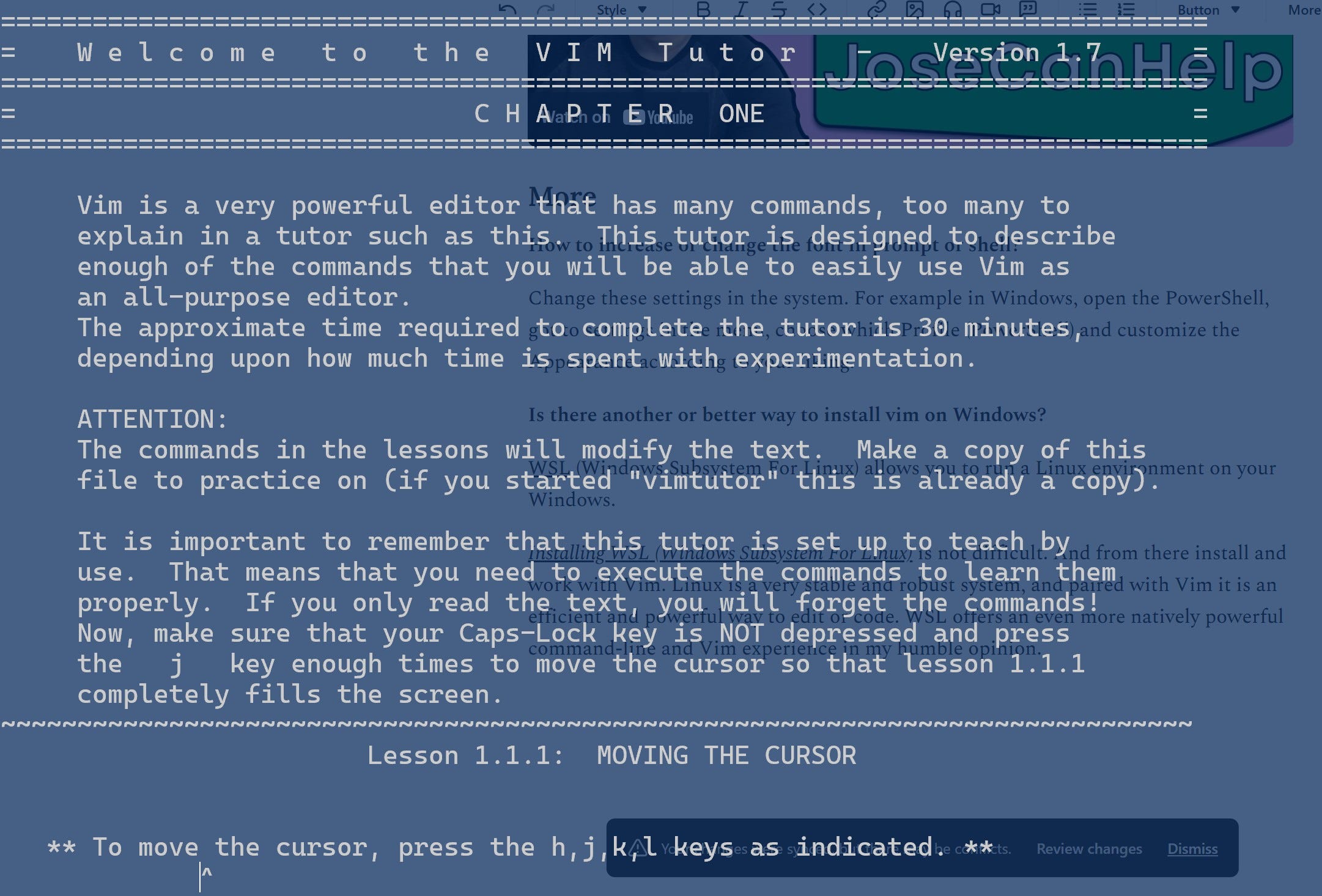
Then open the command prompt / PowerShell / Linux shell, type vimtutor and enter for the tutorial.
In this tutorial, students will practice the commands on this tutorial itself to modify the text as they progress.
To launch vim, type vim and enter to launch.
Simple Vim IDE Configuration No Plugins Setup
Vim is powerful enough on its own without even using plugins.
This is a good tutorial to setup a really simple IDE in Vim with no plugins. You can do without this but it teaches the very basics of configuring vim i.e. ~/.vimrc file. Beginners should benefit the most. For my case, I would skip the parts about tabstop and remove white spaces configuration for python.
Why do I recommend this? The video goes at a slow pace so newcomers can catch up. And it illustrates some basics quite well, suitable for those after vimtutor.
Vim For VSCode
Alternatively, we can skip the installation and go the VSCode Vim route. There is also a Vim extension in VSCODE that can be installed. It is not a full Vim experience with an editable .vimrc file but basics like text manipulation is fine. It can be a stepping stone before you install Vim itself.
Vim VM-Plug Manager To Install Plugins For Vim
This is optional. Those who wish to dive further into the Vim world can install a plethora of plugins available. Take a look at Vim Awesome. But first we have to learn how to install the plugins we want. Below is a video that talks about the minimalistic VM-Plug plugin manager. We can also learn to install it by reading the official VM-Plug Github page.
More
How to increase or change the font in prompt or shell?
Change these settings in the system. For example in Windows, open the PowerShell, got to settings in the menu, choose which Profile (PowerShell) and customize the Appearance according to your liking.
How to change my Vim theme?
You can either do it with a Vim plugin manager (persistent) or just type this in Vim :colorscheme scheme-name. Replace scheme-name with the scheme you want e.g. desert, habamax, quiet, and so on.
Is there another or better way to install vim on Windows?
WSL (Windows Subsystem For Linux) allows you to run a Linux environment on your Windows.
Installing WSL (Windows Subsystem For Linux) is not difficult. And from there install and work with Vim. Linux is a very stable and robust system, and paired with Vim it is an efficient and powerful way to edit or code. WSL offers an even more natively powerful command-line and Vim experience in my humble opinion.