
A Quick Basic Vim Tutorial Dive
For the curious budding programmer and command line warrior or someone just scouting for a free powerful editor

If you are looking for a more gentler introduction to Vim with videos - Vim For Beginners.
Have you ever wondered or seen how some people can quickly edit files and codes with unstoppable speedy ease? Or make multiple complex changes to files in matter of seconds…
Why Vim?
It’s fun. It’s minimalistic. It’s efficient. It’s robust. It’s fast. It’s free. Why not?
It makes you think of the steps on how to accomplish certain tasks. Then these repeated steps becomes second nature. One may even think proficient Vim use makes a person smarter, at least in a certain way.
The bare basics is fine, the more you use it, the more you can better it with shortcuts, customizations, and plugins. In other words, your vim skills can grow as you progress.
How to install Vim?
It is not too hard. Just follow the basic instructions from the main Vim site.
Vim basics
At least know these 4 common modes (Normal, Insert, Visual, Command-line) and the following basic keys.
Type vim filename in the command shell to start.
Normal mode (Block cursor. Esc in other modes to return)
Time to play (usually the capital letter is a related action):
h move left j move down (j for jump) k move up (k for kick) l move right
Arrow buttons can work too. Guess what does 5h do?
y copy or yank yy copy the current line What does 5yy do?
d delete dd delete a line (and kept in the last copy-paste buffer) 2dd What does 2dd do?
p Paste from the last buffer i.e. last yank or delete.
w move to the next word 10w What does 10w do?
b move to the previous word
f followed by a character find (f) that character on the current line move the cursor to it, while t stops before that character What does dfl do to this line?
/search_pattern_to_find To find that word or pattern. Press enter and n for the next occurrence.
Home key or 0 Go to the start of the line
End key or $ Go to the end of the line
gg Go the top of the file
Shift g Go to the last line of the file
u Undo
Ctrl-r Redo
Insert mode (Start editing)
i to insert What does I means?
a to append What does A means?
Visual mode (For selection)
v and move cursor to select text
Shift v to select the whole line
Command line mode (execute commands)
:w to save
:q To quit. Use :wq or :x to save and quit together. Even better is ZZ.
:s/old_text/new_text/g To replace all occurrences in the file
A useful Vim Hack
Now for a powerful and fun part. These can prove to be very helpful in saving repetitions.
ci” Delete everything inside the double quotes and enter insert mode. Think of c for change and i for inside. vi” Visually select everything inside double quotes. Couple this with a p to paste whatever you copied before. vit Visually select everything inside tags
Of course, feel free to replace double quotes with single quotes, braces, brackets, greater than sign.
If you find this hack useful, read on about the vim surround plugin.
Where is the vim configuration file?
Usually it is at the home directory ~/.vimrc.
How to open multiples files in vim tabs?
For example, to open all text files in a folder, type and enter: vim -p *.txt, gt to move to the next tab, and :wqa to save all and quit vim altogether.
Summary
See, the basics is not too overwhelming, right?
It may not be fun or appear to be powerful when starting to learn. Like most, the rewards we reap depends on the hard work invested. If you see how fast Vim experts blaze through, your impression might change.
Personally, the simple and basic interface, even with themes, is appealingly fun.
Learn by practicing first: Type vimtutor in the command shell and enter.
Basically, why people use Vim is because we can quickly and efficiently create and edit content.
Vim should help you reduce the chore of consuming edit repeats.
Moreover, some may also find the interface fun or conducive for writing content and coding.
Go do some good with Vim.
More
What if I want to replace or add or delete quotes or tags that surround some text?
Good question, particularly if you do a lot of such edits. This is where is popular vim-surround plugin comes in.
Read more in Vim plugins.
What if I want to paste some text I copied from the browser or windows applications?
In the insert mode, Ctrl-shift-v to paste. Copying from Vim and pasting into the browser or windows apps will not work.
To overcome this limitation, there is a plugin for copy and paste shortcuts to the system buffer I found to be working, read more in Vim plugins.
How to view the manual page for a function? Where is the vim help manual?
At the function keyword, type K. For help manual, type :help and enter. Close it with :q.
Does the mouse work in Vim?
It should. Mouse can be used to go to specific position quickly and select text for copying.
Why does some vim editors has weird line numbers on the left?
That is probably configured with line numbers relative to the current line as 0. The editor can start with this feature by adding this line in dot vimrc file, save it, and enter after typing :source. set relativenumber
We can move around with just i.e. 15j to go to 15 lines down.
What is in vim? By default, it refers to the backslash \.
What is a basic practical Vim configuration file example?
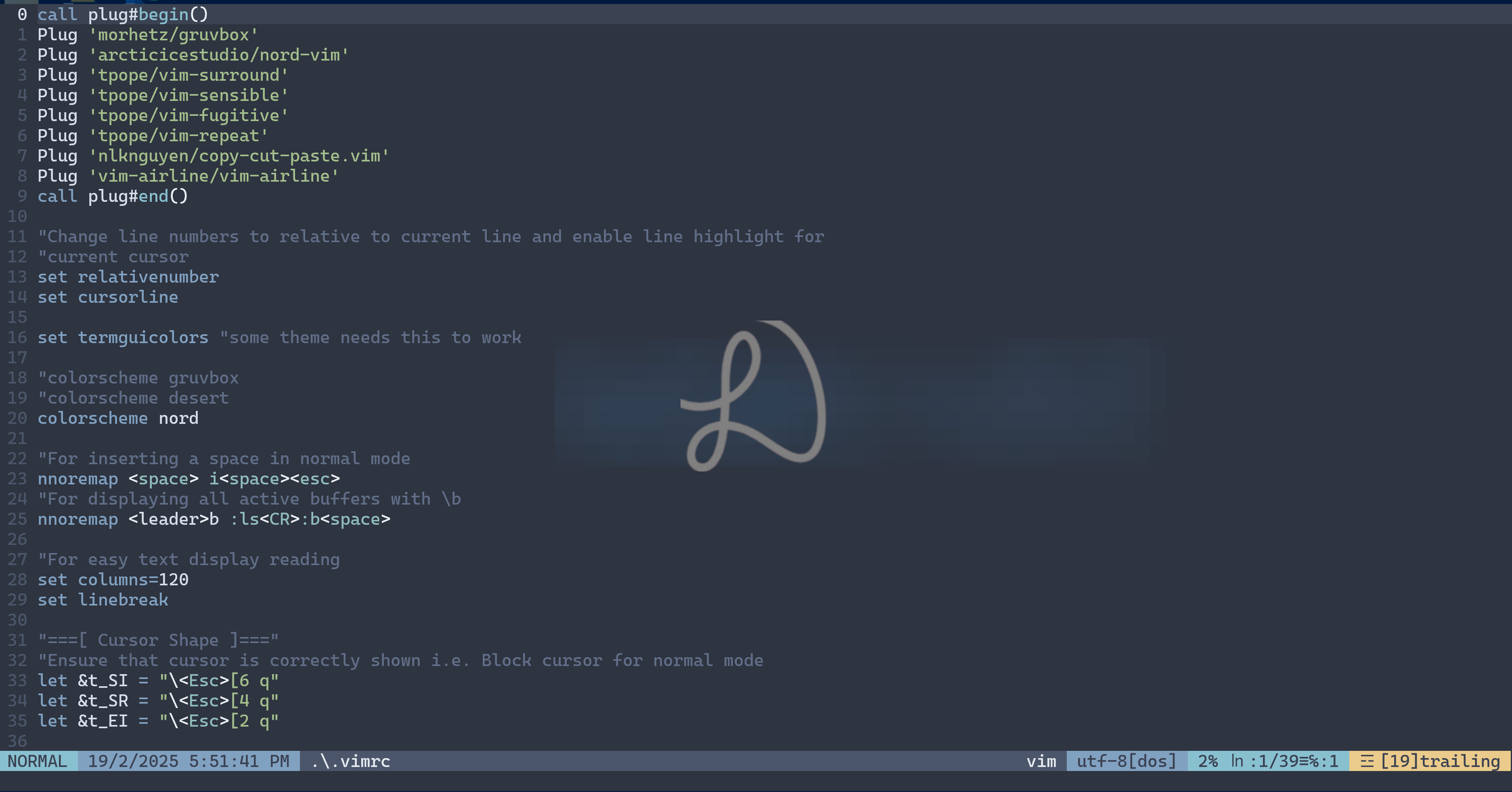
For example, I use the following in my .vimrc file. Without the plugins and theme related lines, it’s just about 7 lines. You may want to only keep it minimal at first, and start adding one at a time whatever you need later.
call plug#begin()
Plug ‘morhetz/gruvbox’
Plug ‘arcticicestudio/nord-vim’
Plug ‘tpope/vim-surround’
Plug ‘tpope/vim-sensible’
Plug ‘tpope/vim-fugitive’
Plug ‘tpope/vim-repeat’
Plug ‘nlknguyen/copy-cut-paste.vim’
Plug ‘vim-airline/vim-airline’
call plug#end()

“Change line numbers to relative to current line and enable line highlight for
“current cursor
set relativenumber
set cursorline

set termguicolors “some theme needs this to work

“colorscheme gruvbox
“colorscheme desert
colorscheme nord

“For inserting a space in normal mode
nnoremap <space> i<space><esc>
“For displaying all active buffers with \b
nnoremap <leader>b :ls<CR>:b<space>

“For easy text display reading
set columns=120
set linebreak
set wrap

“===[ Cursor Shape ]===”
“Ensure that cursor is correctly shown i.e. Block cursor for normal mode
let &t_SI = “\<Esc>[6 q”
let &t_SR = “\<Esc>[4 q”
let &t_EI = “\<Esc>[2 q”

“Display date and time in airline
let g:airline_section_b = ‘%{strftime(”%c”)}’
Note: nnoremap is a syntax to map a key in normal mode that ignores other mapping. In this case, nnoremap <space> i<space><esc>, a space in n
ormal mode will activate insert mode, put a space, and then escape key.
nnoremap <leader>b :ls<CR>:b<space> means that pressing \b will reveal all the buffers with :ls and enter, and :b with a space ready for the user to type the buffer number to go to. Cancel with Esc. More on the buffer later.
What other useful features are there in Vim?
Buffers, tabs, splitting windows, macros, folding, bookmarking, etc. If you work with a lot of tags including html, emmet-vim can be an excellent plugin for expanding abbreviations.
How to browse (or autocomplete) and insert functions or path and filenames in Vim?
In Insert Mode, type Ctrl-x Ctrl-f, a list of available directories or filenames will be displayed for insertion. Keep pressing Ctrl-x Ctrl-f for deeper sub-directories.
Can Vim be configured as an IDE?
Yes, it can. Although the setup and installation usually may be more complex than just adding a plugin and involve some troubleshooting.
What is macro and how to use a macro?
Macro is a feature to record a sequence of commands that can be repeated. This is especially useful if there are a large number of repetitive tasks to perform. An example use is to record a macro to comment/uncomment a line of code with “ at the beginning of each line, and repeat that for 10 lines i.e. 10 @a.
In normal mode, press qa. (q will start recording the macro and a is the name of this macro) to start performing all the commands and steps as you would normally. Back in normal mode, press q to quit stop this macro. Repeat this macro with @a.
How to split and use the Vim windows?
Quite easy actually. :split will split the window. :vsplit and press tab to browse or autocomplete (with starting letters) will open a vertical window. Ctrl-w-w will navigate between the windows. :q will close that active window.
How to open a file explorer in Vim? :Ex
How to open a terminal or shell window below in Vim? :sh
What is and how to use buffers? Is buffer a tab?
Buffers is similar to tabs but not exactly. In a nutshell, buffers can be a preferred choice for multiple files to work with while tabs can be good for say comparing a file with 2 tabs. :e and tab to autocomplete to open a file :ls or :buffers will display all buffers :bn will go to next buffer and :b number to go to a specified buffer number :bd will close the current buffer
As mentioned above nnoremap <leader>b :ls<CR>:b<space>, this line line in .vimrc can be helpful for viewing all the active buffers with \b in normal mode.
The indentation of the codes with missing beginning characters looks messed up when I copied some codes from the browser and pasted into Vim. What can be done?
In normal mode, press “+p to paste.